
Report Delivery allows Business users who do not typically log in to the DSP® to log in, view and download the migration reports that are of interest to them. Business users are defined at the object level in Console or at the target level in Target Design. Click My Reports in the Navigation pane to access links to the migration reports that tou can access.
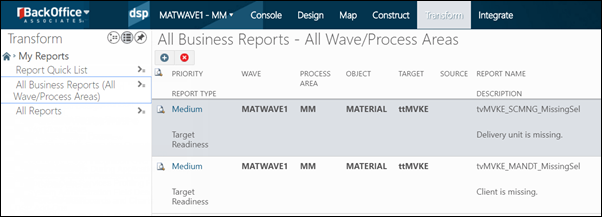
Any target, target source, or target Data Services report can be used on Report Delivery pages.
Report data access can be restricted for sensitive information or can be limited by report filters or target report segments.
There are two types of users for Report Delivery: An Administrator configures Report Delivery. Business Users view the reports.
An Administrator can:
- Configure Settings in Console for Report Delivery
- Configure Workflow Notifications for Report Readiness
- Grant Users Access to Reports and Sensitive Data
- Create Report Segments
- Create Report Filters
- Publish Reports
- Remove a Report from Report Delivery Pages
To view reports:
- The user must be a Business User or Developer in Console for an object or in Target Design for a target. Refer to Add Developers and Business Contacts to a Target or Source and Add Developers and Business Contacts in the online help for more information.
- The user must be granted access to the target using security roles and security keys. Refer to Set Security in System Administration help.
- The report must be published. Refer to Publish Reports to Report Delivery Pages for more information.
- The user must be granted access to the report. Refer to Assign a User to a Report for more information.
Publish Reports to Report Delivery Pages
When a report is published it is visible on the Business user’s Report Delivery pages (accessed from My Reports in the Navigation pane).
By default, reports are not published.
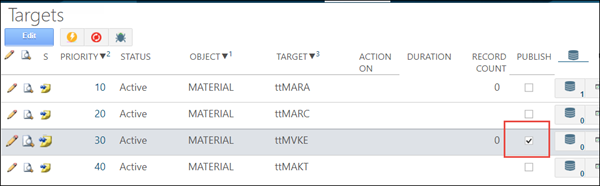
A user can publish all reports in an object, target, or target source, by checking the PUBLISH check box for the report on the Objects, Targets, or Target Sources pages.
To publish an individual report, click the Publish check box on the Business User Settings tab on the Vertical View of the Target Reports, Target Sources Reports, or Target Data Services Reports pages:
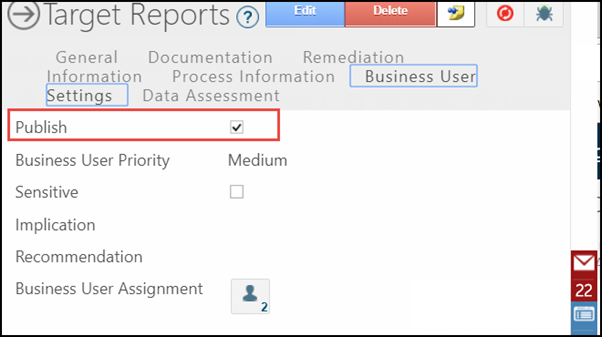
NOTE: If the PUBLISH check box is enabled at the parent level on the Targets, Objects, or Target Sources pages, DSP evaluates the publish setting for each report for the object, target and source to determine if the report will be published. If the PUBLISH check box is not checked at the parent level, then the publish setting for each report is ignored and none of the reports beneath the parent level are published. When processing a report directly, Transform uses the report-level publish setting to determine whether to publish a report to the Report Delivery pages
The following reports are available on the Report Delivery pages:
- All Reports — View all published reports to which the current user has access
- Target All Errors Report — View all errors for a target. The report is not registered but is automatically generated, and aggregates the primary key information from every error report (Error, Target Readiness and Business Readiness report types) that is registered to the target. This process also includes Target Data Services and Target reports with a report type of Error.
- All Business Reports – All Waves/Process Areas — View all reports assigned to the current user across all waves and process areas
- All Actionable Reports — View actionable reports that represent errors. The report types included in the actionable reports list are: Business Readiness, Target Readiness and Error. The errors in these reports need to be remedied in order to properly load the data in to the target system.
Add Reports to Your Quick List
Users can add and remove reports on their own customized Report Quick List.
To add a report to the Report Quick List:
- Select My Reports > All Reports in the Navigation pane.
- Click the All Reports icon or the Actionable Reports icon for the OBJECT.
NOTE: All reports that the user is assigned to are displayed in PRIORITY sort order with Critical at the top. - Select the report to add to the Report Quick List
- Click the + sign (Publish Selected to Quick List).
- Select My Reports >Report Quick List in the Navigation pane; the report displays in the list.
NOTE: Click the Remove Selected from Quick List icon to remove a report from that page for the current user.
Comments
0 comments