
The boaStatus column displays important information about the status of a record, indicating that:
- Data has passed or failed validations
- A process is queued, running, or complete
- A process completed successfully
The icons in the S column represent the status of the record. The boaStatus field is included on every page table, and displays on DSP® pages that use an OnValidate event or that run a process.
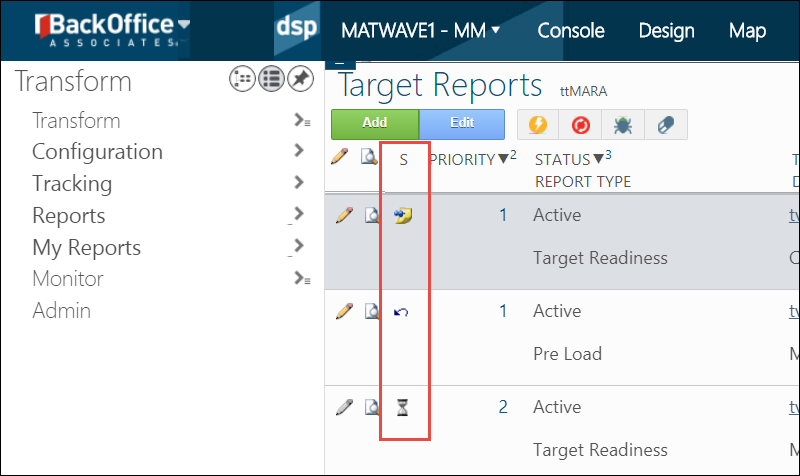
You can filter on the boaStatus field to view, for example, all records that are currently processing, or all records that failed validations. Right-click the column and select Filter.
boaStatus Icons Related to Validations
Validation Rules are assigned a Severity to dictate boaStatus behavior. Severity types are:
- Error – Marks the status as invalid until the error is corrected and the Validation Rule passes.
- Message – The status is valid but a message displays.
- Warning – Displays a message and the status can be validated or invalidated by the user.
- WorkflowOnly – Works with Business Rules. If a record is valid the workflow defined as a Business Rule executes. If a record is not valid, the workflow defined as a Business Rule does not execute.
To validate data and run business rules after validations pass, click the boaStatus icon. If data is changed via SQL or Excel Integration, validate a single record or use Bulk Execution to validate all records on the page.
NOTE: When designing a custom WebApp, an OnValidate event must be added for every page that contains a boaStatus field, even if there are no Validation rules or Business rules registered to the page. boaStatus is not automatically updated by DSP if the OnValidate event is not created.
Common statuses for data validation are:
Unvalidated

If a record has been added or updated but has not yet been saved or validated, this icon displays.
Validation Failed

Look for records that did not pass validations that displays this icon. Update the record and validate it again, either by saving it or by clicking the boaStatus icon. A record in this status can be updated or deleted.
Validation Passed

After a record has passed validation rules, this icon displays.
boaStatus Icons Related to Processing
Queued

A background event is in the queue to be processed and will auto-refresh when it is being processed. While in this status, the record cannot be updated or deleted.
Processing

A background event is currently processing and will auto-refresh when complete. While in this status, the record cannot be updated or deleted.
NOTE: Wait until processing completes and this icon no longer displays before performing the next action on the record. For example, wait until the sync between Target Design and Map is complete before working on field mapping.
Processing Failed

Processing is complete but failed. A record in this state is still considered valid.
Procedure Complete

The process has completed successfully.
Not only does boaStatus provide important information about data, it can also determine whether icons, buttons, or other page elements are active, or whether workflows are sent.
To work successfully in the DSP, monitor the boaStatus column for failed validations or processes or to ensure that a process has finished.
Comments
0 comments