
The DSP® contains a robust help system, accessible from any product page when you click the ? icon. Use these search tips to find the information you need quickly.
Search All Topics allows a full text search of the online help across all components and solutions.
Select a component from the All Topics drop-down to search for topics in a specific component.
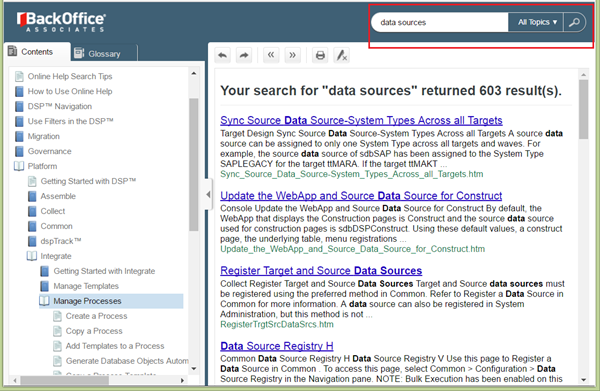
To search help, enter a search term, and click the Search icon, a magnifying glass on the Page toolbar. The search results display, and the matching results show how many times the term is mentioned. A link to each of the topics containing the search term displays.
Use the All Topics drop-down to select a component to limit the search to a specific component.
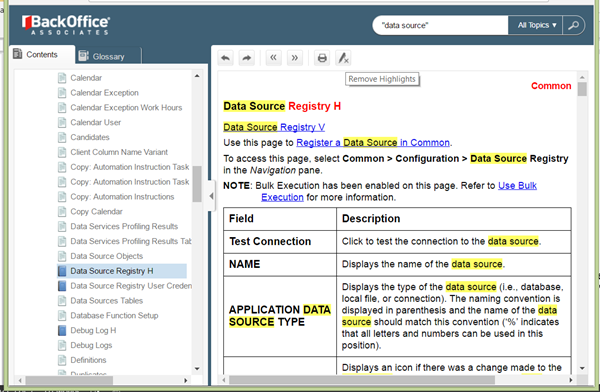
Use quotes around multiple word search terms (e.g., “data source”) to view the topics that contain the exact phrase.
The first term(s) in the search results abstract indicates the component of the topic.
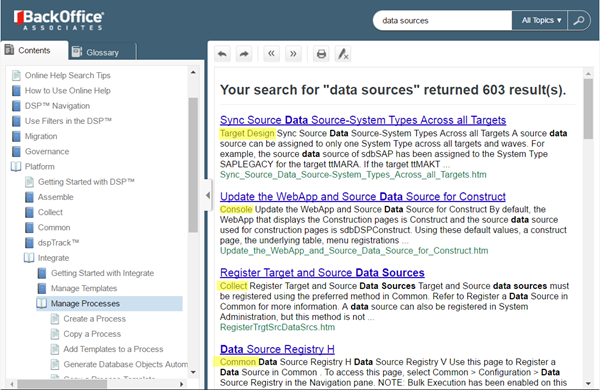
When a topic is opened from the search results page, the search term is highlighted. To turn off highlighting, click the Remove Highlights icon.
Use Ctrl+F to search in the current topic.
Search terms are not case sensitive and include matches with variant endings. For example, a search for "Sync Map with Target Design" returns "Syncing Map with Target Design" and "Synced Map with Target Design."
The following Boolean operators are also allowed:
- AND
- OR
- ()
NOTE: Use parentheses to combine search terms with Boolean operators. For example, search for Events and (validations or rules) to return a list of topics containing the terms events and either the terms validations or rules.
- ^
NOTE: Use the carat symbol (^) for NOT expressions. Enter (^) between terms to search for topics containing one term but not the other. For example, to search for topics that contain Org Units but not positions, enter "Org Units" ^ Positions. The word NOT cannot be used as part of an expression when searching, only the ^ is allowed.
NOTE: Wildcard searches are not allowed.
To return to the search results, on the toolbar, click the Go to previous topic in browser history icon.
Can’t find what you are looking for? Send an email to the documentation team at helpfeedback@boaweb.com. We can work with Product Management to add content to the help in an upcoming release.
We will describe documentation updates from Data Insiders in the comments.

Comments
1 comment